

How to Create a Home Loan Calculator in WordPress
A home loan calculator is one of the highest-value tools you can add to a finance website. It lets visitors estimate their monthly payments in seconds, keeps them engaged on your page, and turns curious browsers into qualified leads. In this tutorial, you’ll learn the different ways to build one, get a working code example you can paste in today, and pick up tips on styling and placement.
Choosing Your Approach
There are three common ways to add a calculator to WordPress, each with trade-offs:
- Plugins: The fastest route. Calculator plugins offer ready-made widgets and shortcodes with zero coding. Great for non-developers, though you trade some control over design and may carry extra script weight.
- Custom code: Maximum control and minimal bloat. You write the HTML and JavaScript yourself, then embed it. Ideal if you want a lightweight, branded tool.
- Page builders: Many builders like Elementor include calculator or HTML widgets, letting you drop in custom code visually. A nice middle ground between flexibility and ease.
If you’d rather not build from scratch, the Finlon theme ships with ready-made calculator templates that you can configure in minutes. But understanding the underlying logic is valuable, so let’s build one.
Step 1: Build the EMI Calculator (HTML + JavaScript)
The core formula for a fixed-rate loan is the EMI (Equated Monthly Installment) formula. Given a principal P, a monthly interest rate r, and the number of months n, the monthly payment is:
EMI = P × r × (1 + r)^n / ((1 + r)^n − 1)
Here is a complete, self-contained calculator. Paste it into a Custom HTML block or a page builder HTML widget and it works immediately:
<div id="emi-calc" style="max-width:420px;font-family:sans-serif;">
  <label>Loan Amount<br>
    <input type="number" id="principal" value="2500000">
  </label><br><br>
  <label>Annual Interest Rate (%)<br>
    <input type="number" id="rate" value="8.5" step="0.1">
  </label><br><br>
  <label>Tenure (years)<br>
    <input type="number" id="years" value="20">
  </label><br><br>
  <button onclick="calcEMI()">Calculate</button>
  <div id="emi-result" style="margin-top:16px;"></div>
</div>

<script>
function calcEMI() {
  var P = parseFloat(document.getElementById('principal').value);
  var annual = parseFloat(document.getElementById('rate').value);
  var years = parseFloat(document.getElementById('years').value);

  if (!P || !annual || !years) {
    document.getElementById('emi-result').innerHTML = 'Please fill in all fields.';
    return;
  }

  var r = annual / 12 / 100;      // monthly interest rate
  var n = years * 12;             // total months
  var pow = Math.pow(1 + r, n);
  var emi = P * r * pow / (pow - 1);

  var totalPayable = emi * n;
  var totalInterest = totalPayable - P;

  var fmt = function(x) {
    return x.toLocaleString(undefined, {maximumFractionDigits: 0});
  };

  document.getElementById('emi-result').innerHTML =
    '<strong>Monthly EMI:</strong> ' + fmt(emi) + '<br>' +
    '<strong>Total Interest:</strong> ' + fmt(totalInterest) + '<br>' +
    '<strong>Total Payable:</strong> ' + fmt(totalPayable);
}
</script>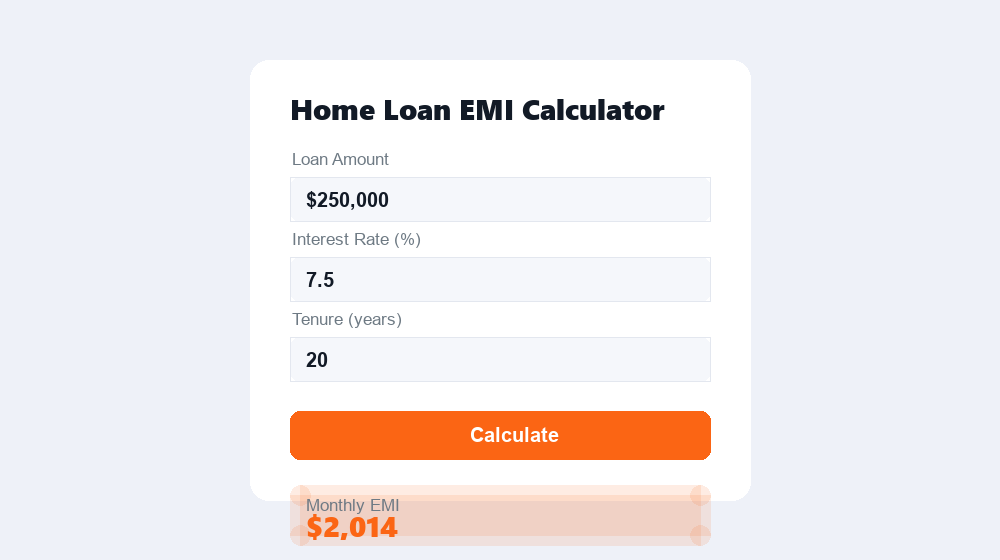
Step 2: Turn It Into a WordPress Shortcode
Hard-coding the calculator into one page is fine, but a shortcode lets you reuse it anywhere with a single tag. Add this snippet to your child theme’s functions.php (or a small custom plugin), then use [home_loan_calc] on any page or post:
<?php
function wpt_home_loan_calc_shortcode() {
    ob_start();
    ?>
    <div id="emi-calc">
        <input type="number" id="principal" placeholder="Loan Amount">
        <input type="number" id="rate" placeholder="Interest Rate %">
        <input type="number" id="years" placeholder="Tenure (years)">
        <button onclick="calcEMI()">Calculate</button>
        <div id="emi-result"></div>
    </div>
    <script>
    function calcEMI(){
        var P=parseFloat(document.getElementById('principal').value);
        var r=parseFloat(document.getElementById('rate').value)/12/100;
        var n=parseFloat(document.getElementById('years').value)*12;
        var pow=Math.pow(1+r,n);
        var emi=P*r*pow/(pow-1);
        document.getElementById('emi-result').innerHTML=
            'Monthly EMI: '+emi.toFixed(0);
    }
    </script>
    <?php
    return ob_get_clean();
}
add_shortcode('home_loan_calc', 'wpt_home_loan_calc_shortcode');
Using output buffering with ob_start() and ob_get_clean() lets you mix HTML and PHP cleanly, then return the whole block as a string, which is exactly what a shortcode needs.
Step 3: Add a Loan Eligibility Calculator
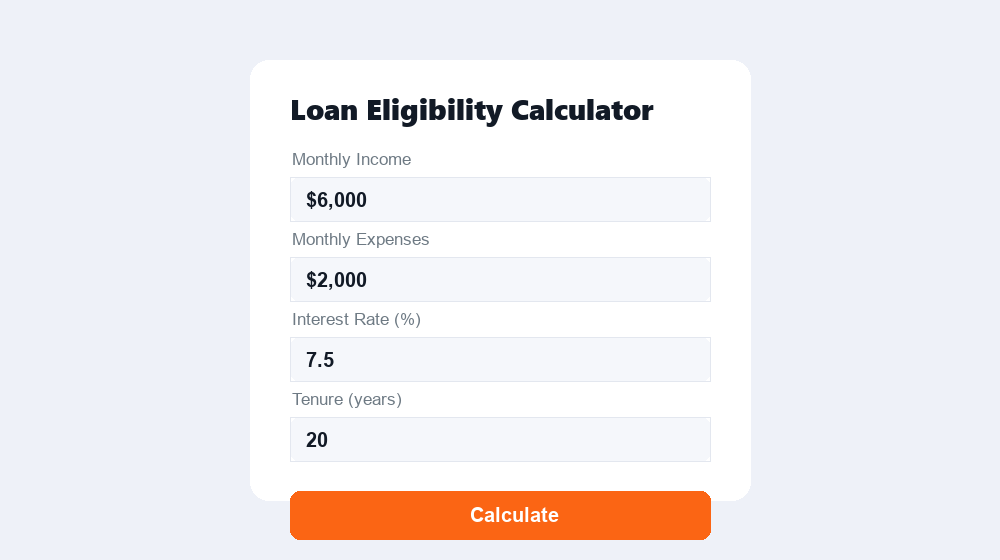
Borrowers often want to know how much they can borrow, not just the EMI on a fixed amount. A simple eligibility calculator estimates the maximum loan based on disposable income. The idea: take monthly income minus expenses to get the affordable EMI, then reverse the EMI formula to find the principal.
function calcEligibility() {
  var income   = parseFloat(document.getElementById('income').value);
  var expenses = parseFloat(document.getElementById('expenses').value);
  var annual   = parseFloat(document.getElementById('elig-rate').value);
  var years    = parseFloat(document.getElementById('elig-years').value);

  var affordableEMI = (income - expenses) * 0.5; // conservative 50% rule
  var r = annual / 12 / 100;
  var n = years * 12;
  var pow = Math.pow(1 + r, n);

  // Reverse EMI formula to solve for principal
  var eligibleAmount = affordableEMI * (pow - 1) / (r * pow);

  document.getElementById('elig-result').innerHTML =
    'You may be eligible for approximately ' +
    eligibleAmount.toLocaleString(undefined, {maximumFractionDigits: 0});
}
The 50% rule used here is conservative on purpose, since most lenders cap the EMI-to-income ratio. Adjust the multiplier to match your own lending criteria.
Styling and Placement Tips
A calculator only converts if people notice and trust it. Keep these tips in mind:
- Place it high: Put the calculator near the top of your home loan page or in a sticky sidebar so it’s visible without scrolling.
- Style for clarity: Use generous spacing, large tappable buttons, and a bold, easy-to-read result. The monthly EMI should be the visual hero.
- Pair with a CTA: Right after the result, add an “Apply Now” or “Talk to an Advisor” button to capture the momentum.
- Stay mobile-first: Test on a phone, since most users will calculate on the go.
A calculator turns an abstract question, “Can I afford this?”, into a concrete, encouraging answer. That’s what moves a visitor toward applying.
With these snippets and a little styling, you can launch a professional home loan calculator on any WordPress site today. Start with the EMI tool, add eligibility next, and watch your engagement and lead quality climb.

Contributor at WowPixelTheme — sharing tips, tutorials and product updates.